Sign Up & Create Your DutiWallet
From your first sign-in to your first circle payment
This is the one guide to follow when you join an online dukuti on Duti. It walks you through creating your account, joining your circle, opening your DutiWallet, linking your checking account, adding money and making your first payment. Each part links to a shorter guide if you want more detail.
Before you start, have these ready
Your phone
Duti works in your phone's browser. No app store download needed.
The email your organizer has for you
Use the same email for sign-in every time, or you'll end up with an empty second account.
Your government ID
Driver's license, state ID or passport. Your wallet details must match it exactly.
Your Social Security Number
Federal law requires it to open a wallet. Duti never stores it.
Your checking account login
Savings accounts don't work. You'll sign in to your bank through Plaid.
Tap “Continue with Google”
Go to www.myduti.com and tap Sign In. The fastest way in is Continue with Google — one tap and your account exists. There are no passwords on Duti.
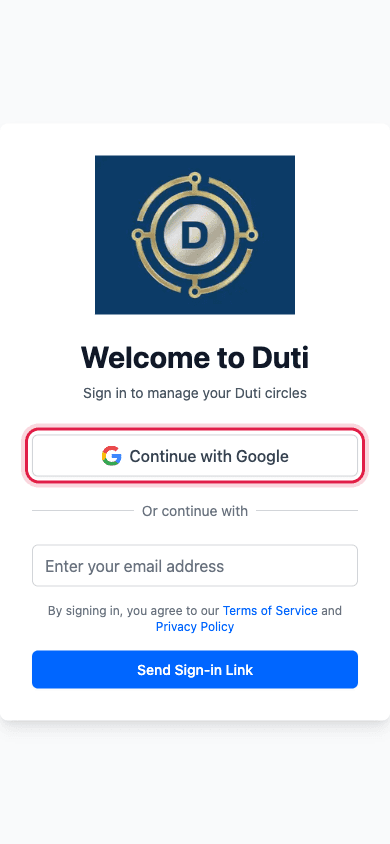
Google is the quickest way to sign in. Use the same Google account every time.
Or use an email sign-in link
If you don't use Gmail, type your email exactly as your organizer knows it and tap Send Sign-in Link. Open the email and tap the button inside within 10 minutes. Check Spam or Promotions if it doesn't arrive.
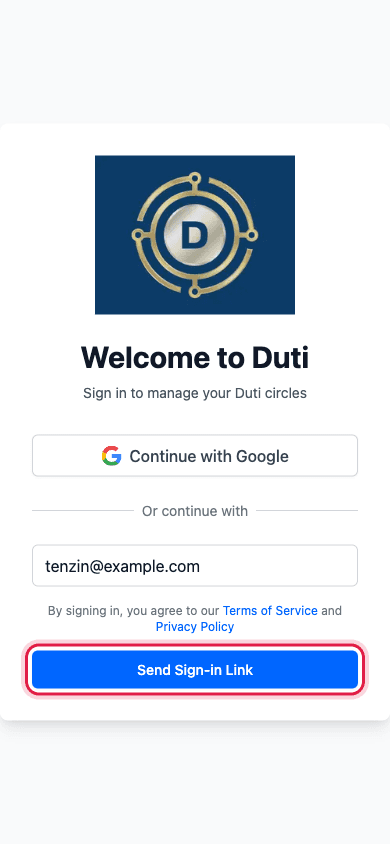
Type your email, tap Send Sign-in Link, then tap the button in the email.
Find the Join a Circle card
After signing in, open User Info. Below your circles there is a Join a Circle card with a Circle Code field. Type the code your organizer sent you, exactly as written, with no spaces.
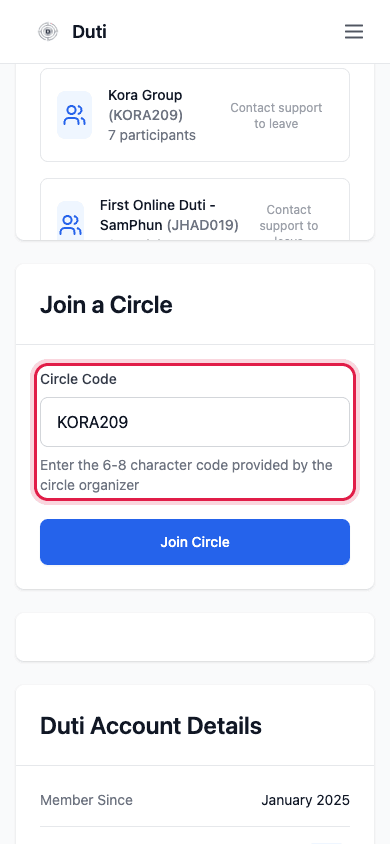
Your organizer's code goes in the Circle Code field on your User Info page.
Tap Join Circle
One tap and you are a member. Your circle appears under Your Duti Circles. If it says Circle not found, check every character with your organizer.
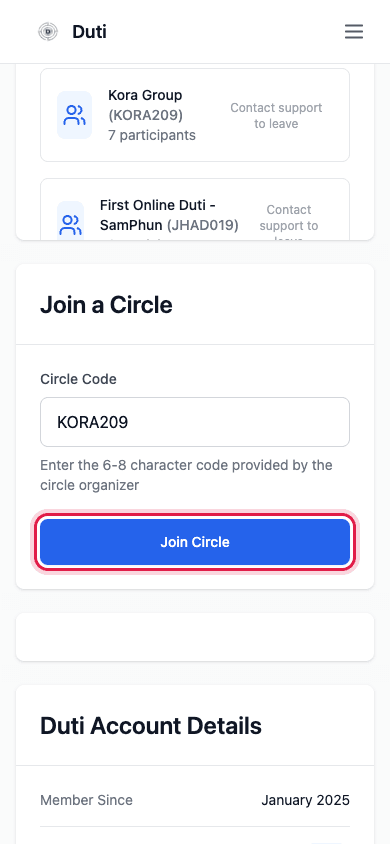
Tap Join Circle. Your new circle shows up under Your Duti Circles.
Match your ID exactly
Type your name, date of birth and address exactly as they appear on your government ID. A nickname, a shortened name or an old address is the number one reason a verification fails.
Tap “Get Started” on your Duti Wallet page
Open Duti Wallet from the menu. Once your organizer has confirmed your seat, you'll see a Join an Online Duti Circle card. Tap Get Started. If you don't see this card yet, message your organizer.
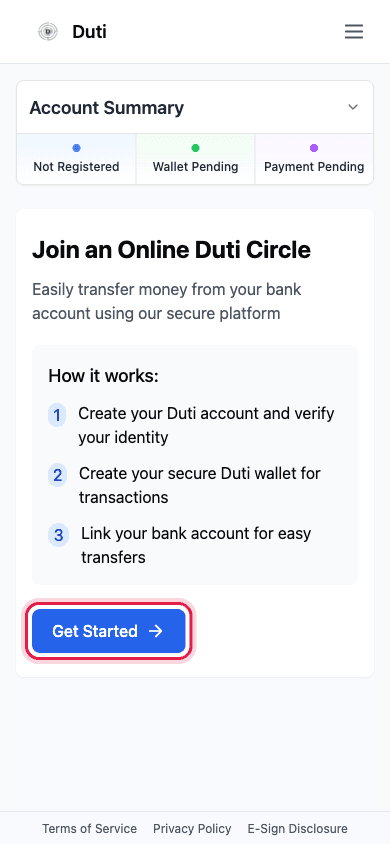
The Get Started button opens the wallet setup.
Accept the agreements
Read and tick both boxes: the Terms of Service and Privacy Policy, and the E-Sign Disclosure and Passport Account Agreement. Then tap Continue.
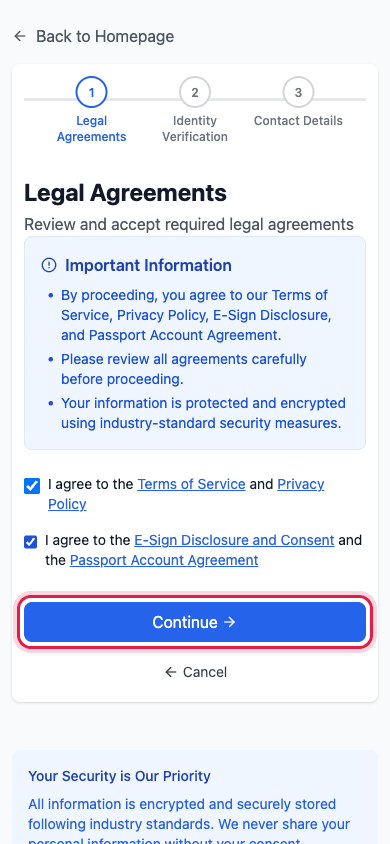
Tick both boxes, then Continue.
Enter your identity details
Type your first and last name as they appear on your ID, your date of birth as MM/DD/YYYY, and your Social Security Number. Your SSN goes straight to our banking partner and is never stored by Duti. Tap Continue.
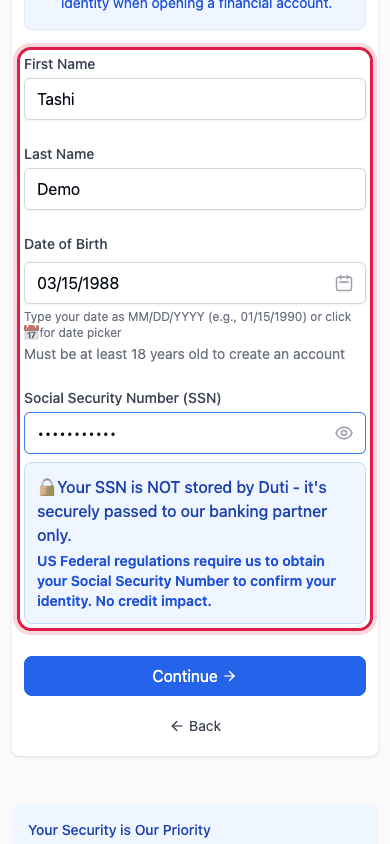
Name, date of birth and SSN, exactly as on your ID.
- You must be 18 or older
- No credit check and no impact on your credit score
- Tap the eye icon to double-check your SSN before continuing
Enter your address and phone, then Complete Registration
Type your US street address, city, state and ZIP code exactly as on your ID, plus the phone number you use. Tap Complete Registration.
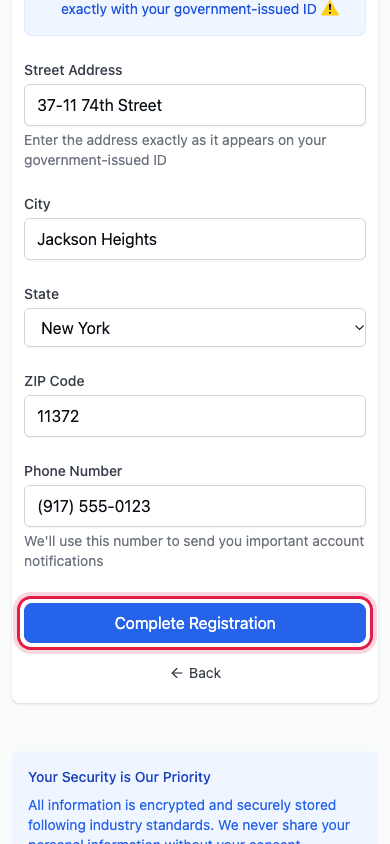
Your address must match your ID. Then tap Complete Registration.
Wait for verification
Most members are verified within a minute. Sometimes it takes 1 to 2 business days. You'll see Verification In Progress on your wallet page; tap Check Status to refresh. If we need a photo of your ID, the page will ask for it.
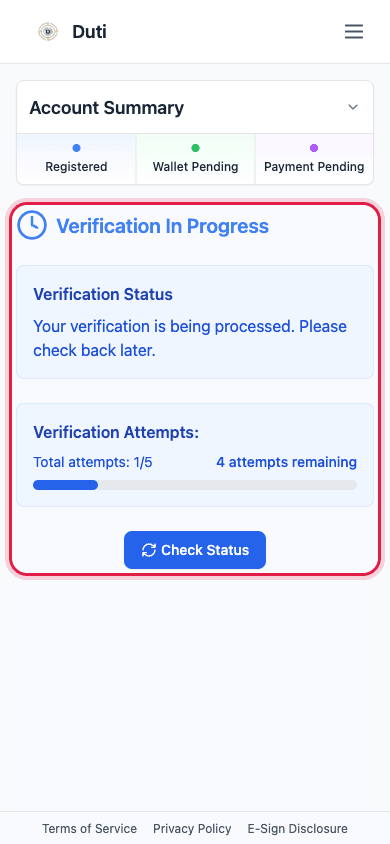
Verification In Progress. Most people pass in under a minute.
Your DutiWallet is ready
When verification passes, a Complete Your Setup window appears with a green check. Your wallet exists. The next step is to link the checking account you'll pay from.
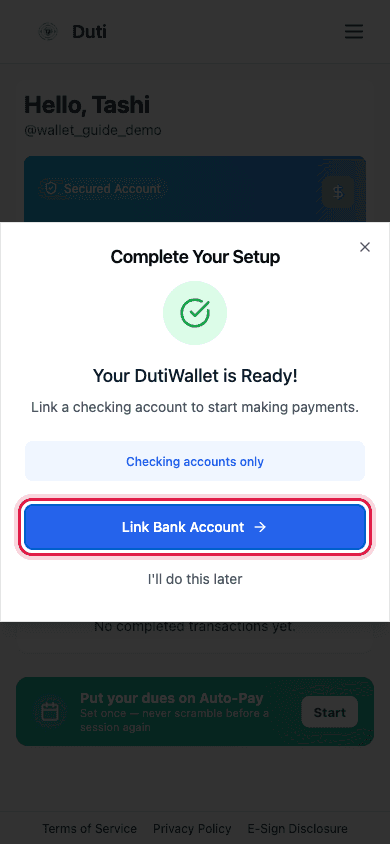
Verified. Tap Link Bank Account to continue.
Tap Link Bank Account and sign in to your bank
Duti uses Plaid to connect to your bank securely. Pick your bank from the list (Chase, Bank of America, Citi and most others), sign in with your usual bank login, and choose your checking account. Duti never sees your bank password.
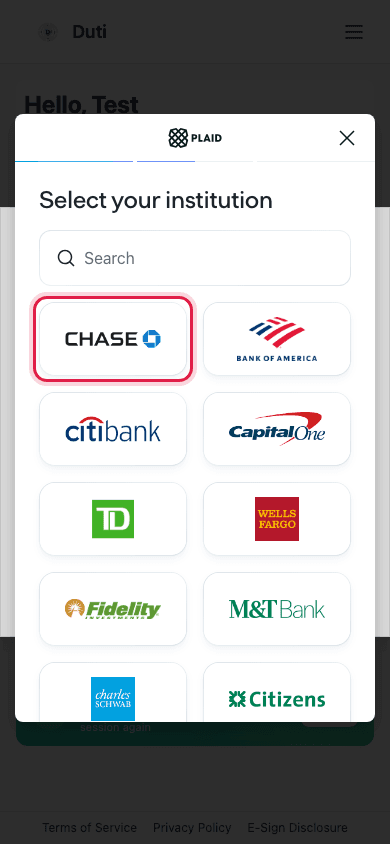
Choose your bank in Plaid and sign in as you normally would.
- Checking accounts only. Savings accounts are not supported
- Your bank may text you a code to confirm
- If your bank shows as inactive afterwards, see the Link Your Bank Account guide
Tap Deposit
On your Duti Wallet page, tap Deposit. Enter the amount you want to move from your bank into your wallet.
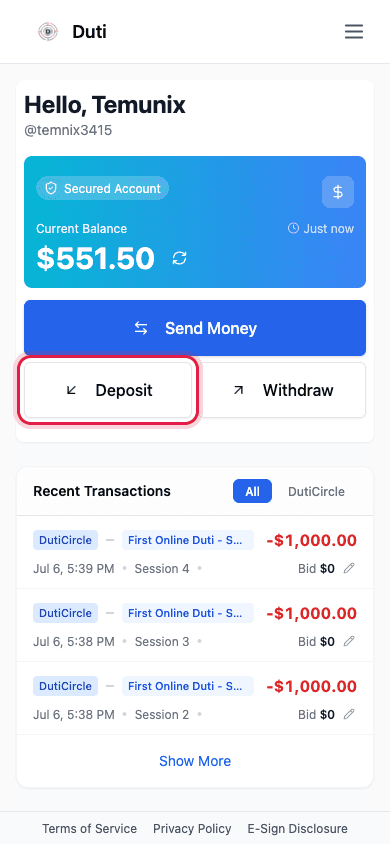
Deposit moves money from your bank into your DutiWallet.
Enter the amount and confirm
Deposits take 2–3 business days to clear, so deposit before your circle's payment date. You can still schedule your circle payment on a pending deposit.
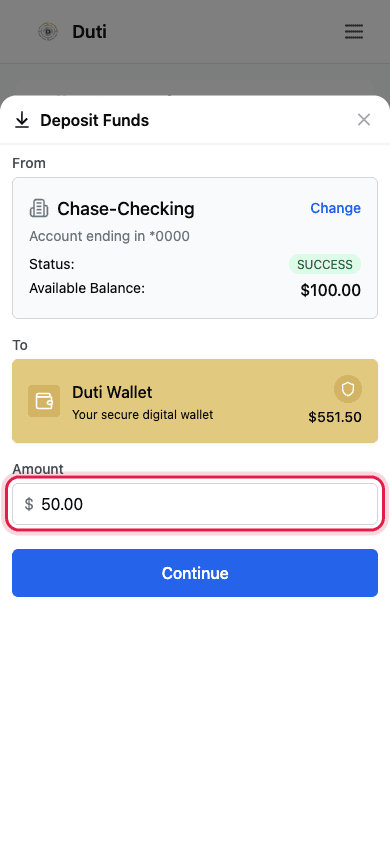
Enter the amount, review it, and confirm.
Tap Send Money and pick your circle
When your dues are due, tap Send Money on your Duti Wallet page and choose your circle. The amount is filled in for you based on the current round.
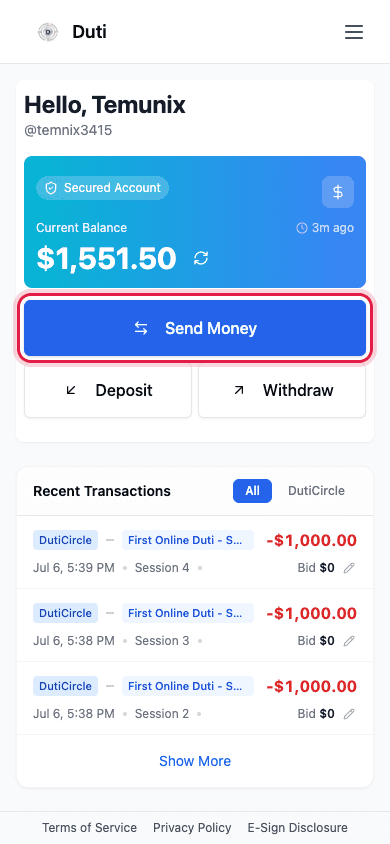
Send Money is how you pay into your circle each round.
Decide on a bid, then confirm
Leave the bid at 0 if you don't want to collect the pot this round. If you do, enter a bid. Tip: avoid round numbers ending in 0 or 5 so you are less likely to tie. Double-check the payment and bid, then confirm.
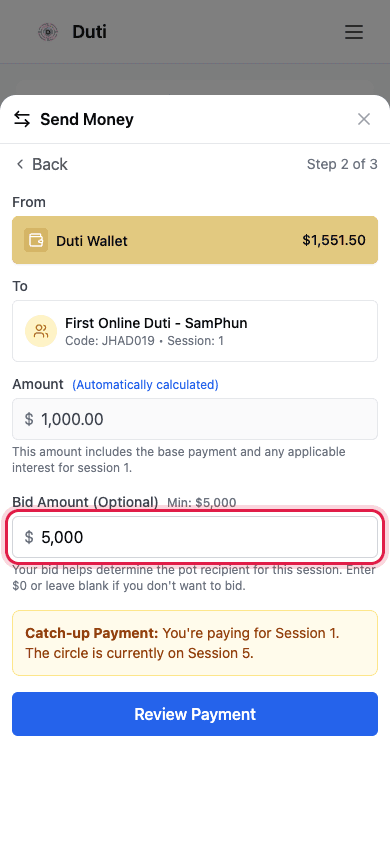
Bid 0 to skip, or enter an amount to compete for this round's pot.
Open your wallet page in Safari and tap Share
Go to www.myduti.com/homepage?section=payment in Safari. Tap the Share button, the square with an arrow at the bottom of the screen.
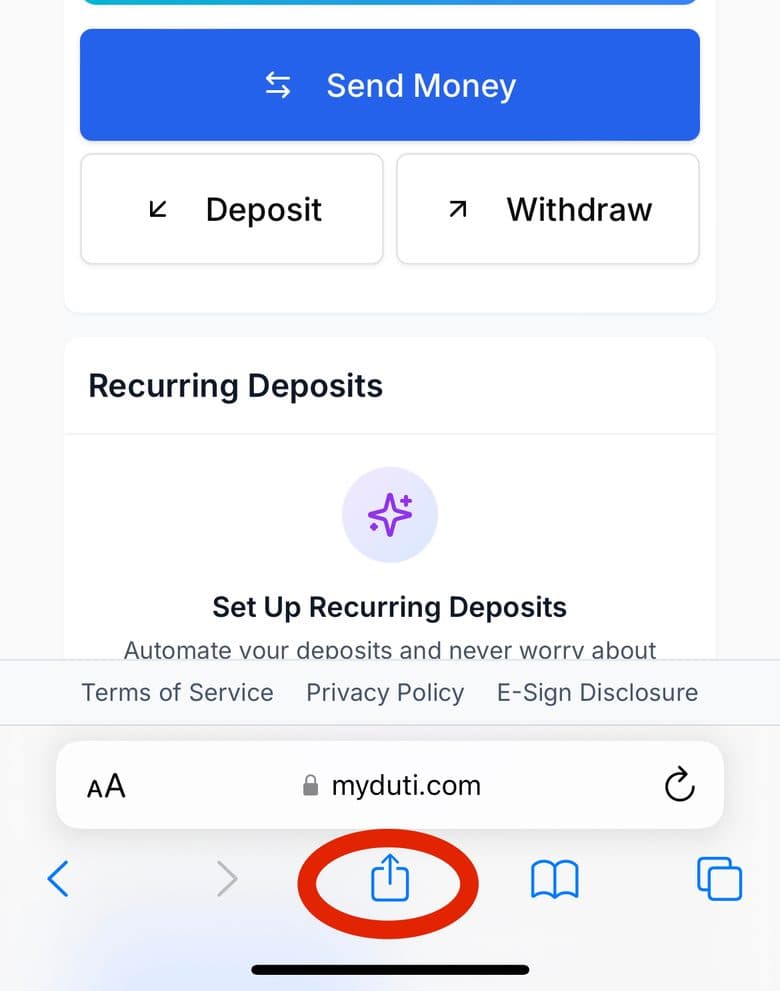
The Share button sits at the bottom centre of Safari.
Tap Add to Home Screen
Scroll down the share sheet and tap Add to Home Screen.
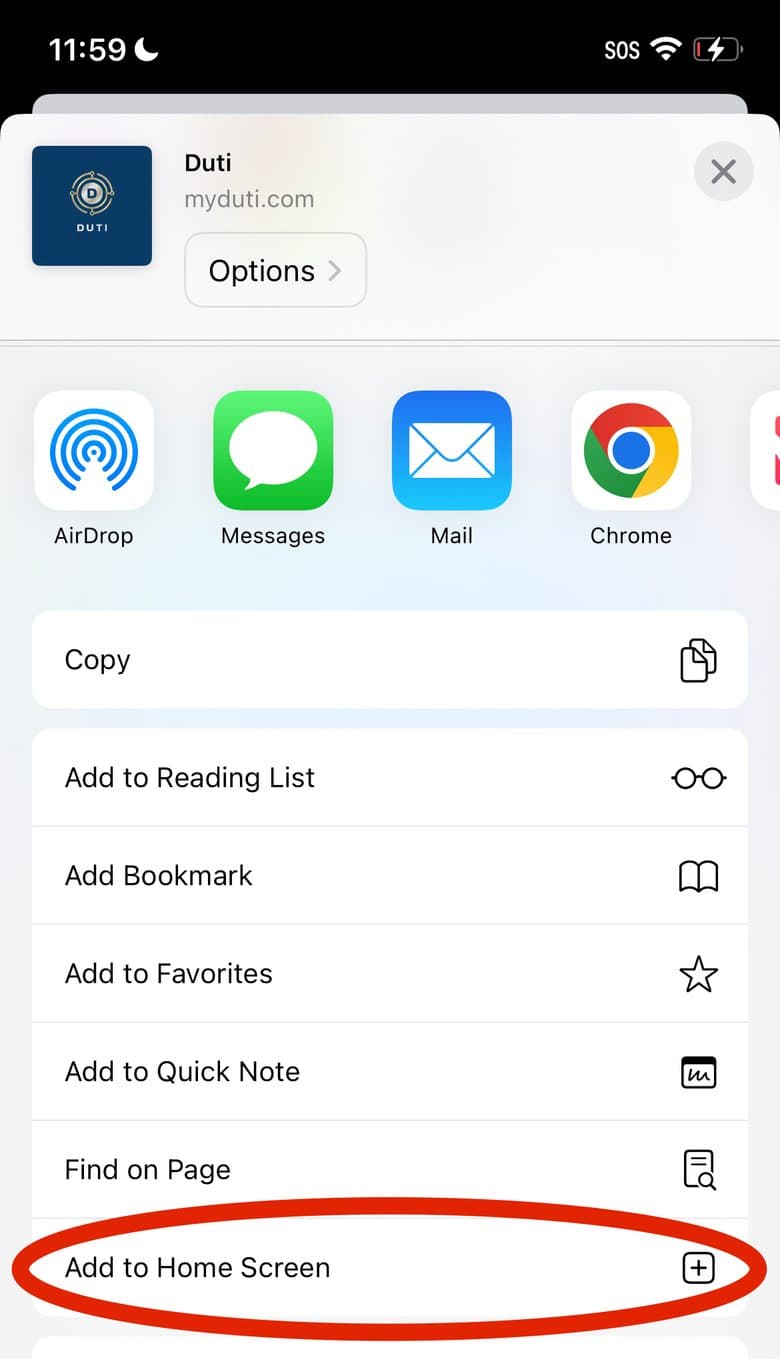
Add to Home Screen is near the bottom of the list.
Tap Add
Keep the name Duti and tap Add in the top right corner.
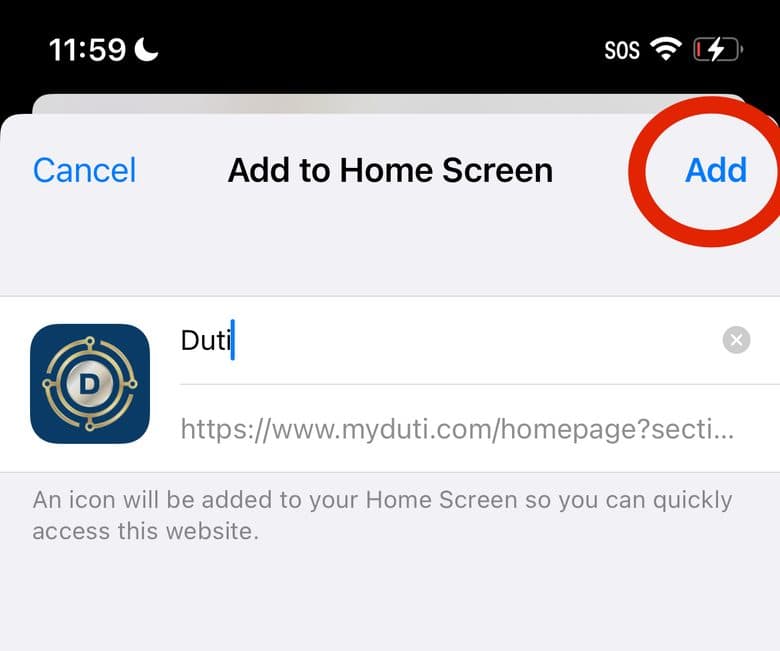
Tap Add.
Duti is now an icon on your phone
Open Duti from your home screen like any other app. On Android, open the page in Chrome, tap the three dots and choose Add to Home screen.
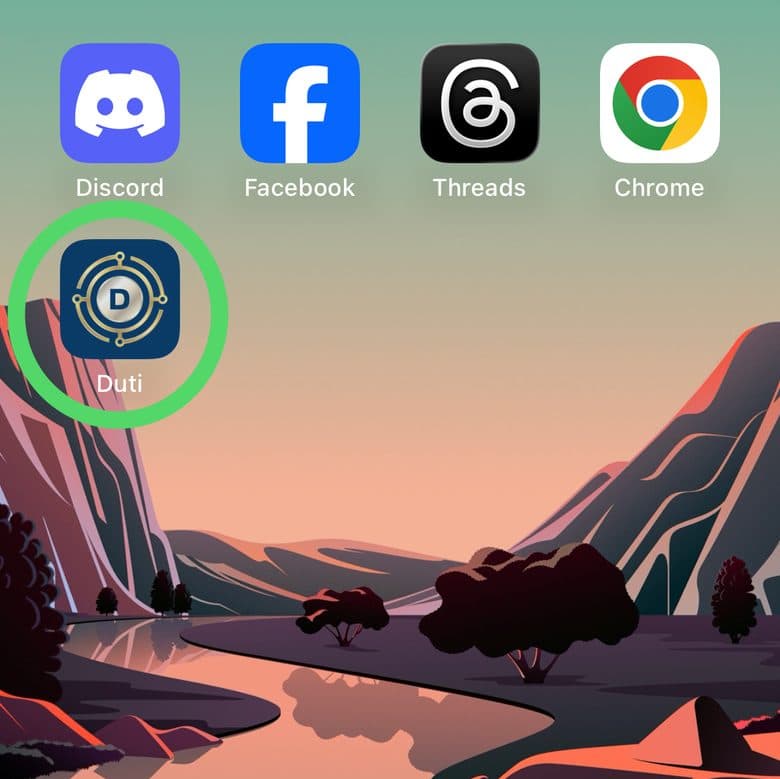
The Duti icon on an iPhone home screen.
Good to Know
One email, always
Signing in with a different email creates a new, empty account that isn't in your circle.
No passwords
Duti only uses Google sign-in and email links. There is nothing to forget or to steal.
Your SSN is not stored
It passes to our banking partner for the legally required identity check and is not kept by Duti.
Deposits take 2–3 business days
Plan your deposit before the payment date. Pending deposits can still be scheduled toward your dues.
Wallet setup appears after your seat is confirmed
If you don't see the Get Started card, your organizer hasn't switched on your wallet yet. Message them.
Checking accounts only
Savings and prepaid accounts cannot be linked.
Common Questions
Your wallet page will show what to fix. Usually it is a name or address that doesn't match your ID. Tap Update Information, correct it, and submit again. If asked, upload a photo of your ID.
Wallet setup is switched on by your organizer once your seat is confirmed. Message your organizer and ask them to turn on your DutiWallet.
No. Only checking accounts can be linked for deposits and withdrawals.
Your DutiWallet balance is held with our regulated banking partner, and every payment and payout is recorded so the whole circle can see the ledger.
Sign-up and wallet setup take about 10 minutes. Add a deposit 3 business days before your first payment date.
You probably signed in with a different email. Sign out, then sign in with the email your organizer has for you. If you still don't see it, ask your organizer for the circle code and join with it.