Sign In to Duti
No password needed — Google or email link
Duti has no passwords. You sign in either with your Google account or with a one-time link that Duti emails you. This guide shows both ways in, how the email link works, and what to do if a link stops working.
Continue with Google — the fastest way
If the email your circle knows you by is a Google account, this is the quickest way in. Tap Continue with Google, pick your account from the list, and you land in Duti already signed in — no link, no waiting.
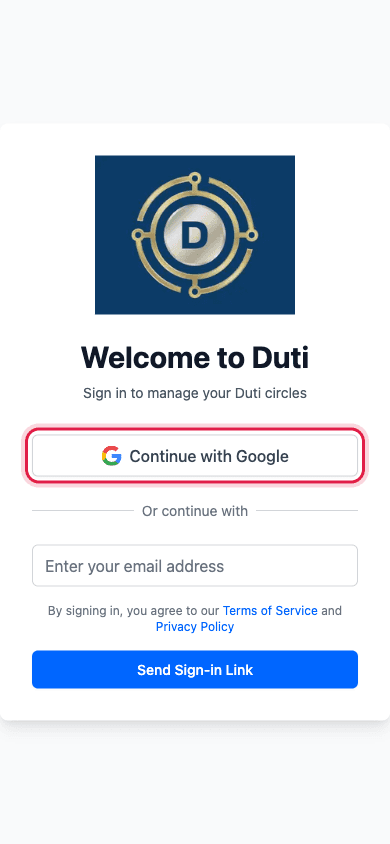
One tap on Continue with Google and you're in.
Or use an email sign-in link
No Google account? Type the email address your circle knows you by — the same one you were invited with — then tap Send Sign-in Link. Duti emails you a one-time link that signs you in.
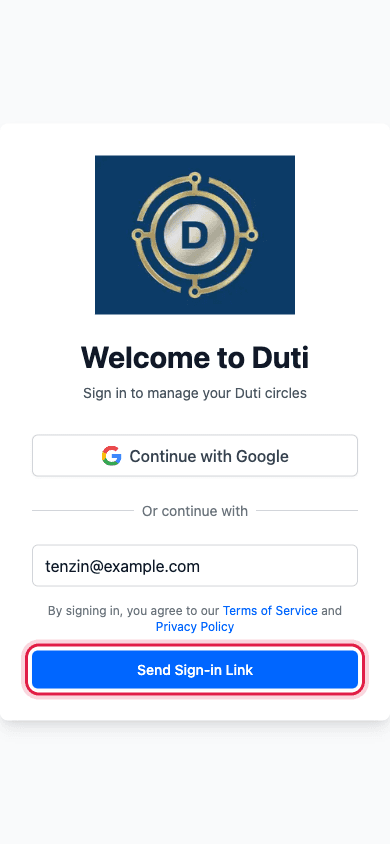
Type your email exactly as your circle knows it, then tap Send Sign-in Link.
Check your email
Duti confirms the link is on its way. It's valid for 10 minutes, so open your email soon. If it isn't in your inbox, look in Spam or Promotions — sign-in emails sometimes land there.
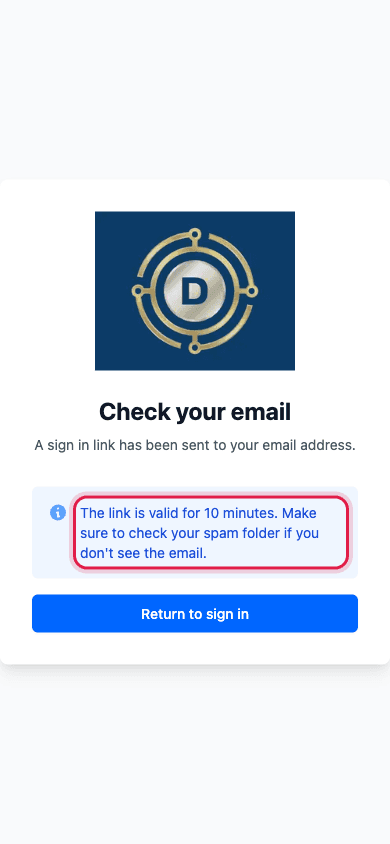
The link is valid for 10 minutes — check Spam or Promotions if you don't see it.
Tap “Sign In to Duti” in the email
Open the email from Duti and tap the Sign In to Duti button within 10 minutes. Each link works exactly once — tapping it opens Duti with you already signed in.
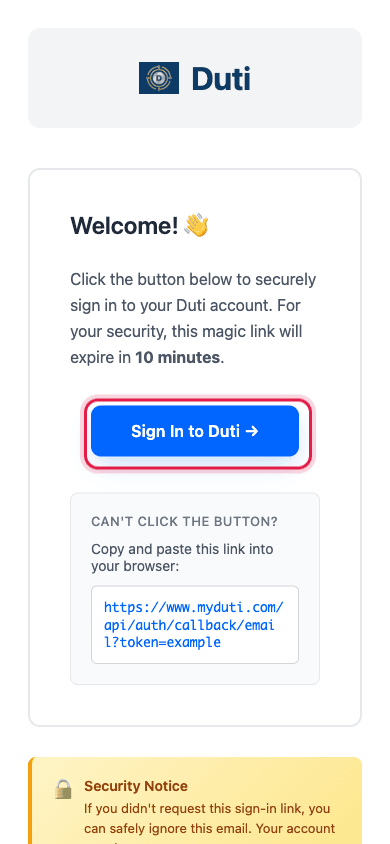
One tap on the button in the email and you're signed in.
Link expired or already used? Request a fresh one
If you see an Authentication Error page, the link either expired (more than 10 minutes passed) or was already used once. Nothing is wrong with your account — tap Try signing in again and request a fresh link.
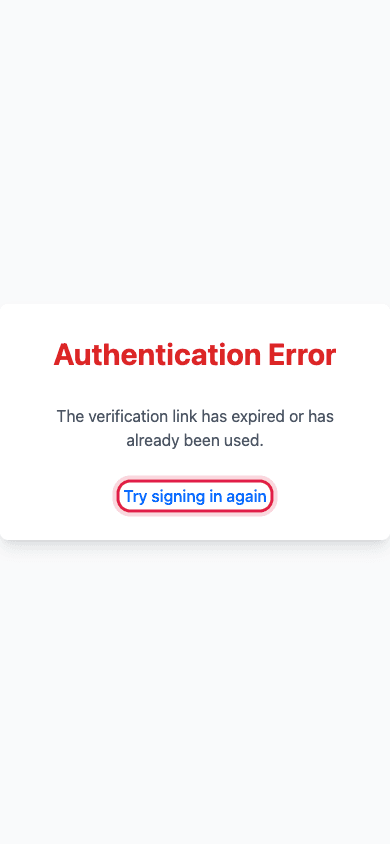
Tap Try signing in again to go back and get a new link.
Good to Know
No password exists
Duti has no passwords at all — there's nothing to forget and nothing for anyone to steal.
Links are single-use and short-lived
Every sign-in link works exactly once and only for 10 minutes. Just request a new one whenever you need it.
The same email matters
Use the email your circle invited you with. A different email creates a separate, empty account that isn't in your circle.
Email apps can open links in their own browser
If you tap the link and end up not signed in in your usual browser, copy the link from the email and paste it into that browser instead.
Common Questions
Check Spam and Promotions first, and give it a minute to arrive. Still nothing? Request the link again — only the newest link works, so always use the most recent email.
Links are one-shot: once tapped, or after 10 minutes, they stop working. Tap Try signing in again and request a fresh one.
No — both reach the same account as long as the email address matches. Use whichever is easier on the device you're holding.
Yes. Request a sign-in link on each device, or use Continue with Google on each — it's the same account everywhere.
Sessions expire after about 30 days for your security. Nothing is wrong with your account — just sign in again.