Fix a Failed or Paused Auto-Pay
Most fixes are one tap away
Your automatic payment didn't run? Don't worry — nothing is lost, and a skipped run doesn't cancel your Auto-Pay. Walk through these four checks in order. Most of the time the fix is a single tap: resuming a paused schedule, nudging a run date, or reconnecting your bank.
Open the Auto-Pay manager
From your wallet screen, scroll to the Auto-Pay row at the bottom and tap Manage. Every auto-pay you've set up appears as a card showing the circle, the bank it pulls from, the Amount, the Frequency, and the Next Deposit date. Start with the Success Rate on the card — it tells you at a glance whether recent runs have been failing.
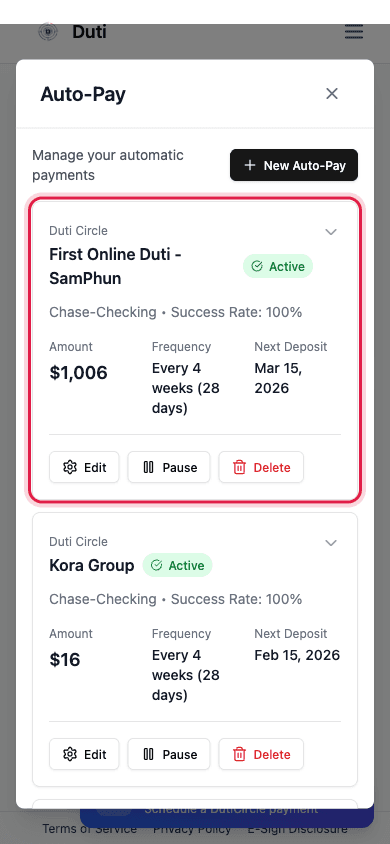
Each card shows your circle, bank, Success Rate, Amount, Frequency, and Next Deposit — plus Edit, Pause, and Delete.
Paused? Resume it
If the chip on the card says Paused, runs are being skipped on purpose — nothing will happen until you tap Resume. Auto-pays can end up paused after repeated failures, or simply because you paused one before a trip and forgot. Tap Resume and the next scheduled run picks up normally.
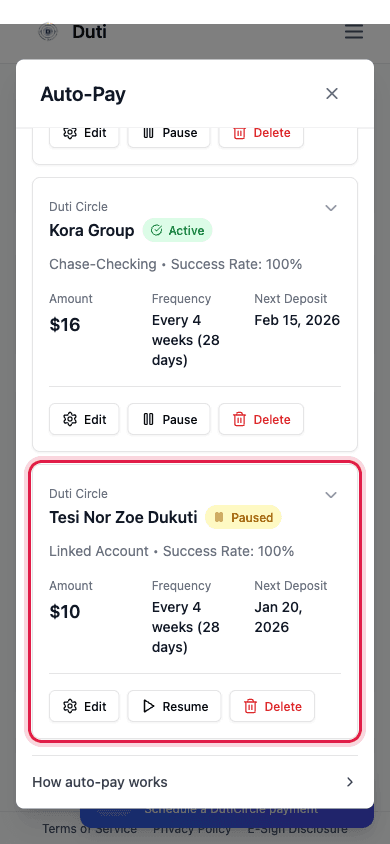
A Paused chip means every run is skipped until you tap Resume.
Check WHEN it runs vs when dues are due
Tap Edit on the auto-pay and look at the Schedule Preview on the Schedule step. It shows two dates: when your next payment is due and when Auto-pay will run. The run date must be BEFORE the payment due date — if it lands after, your dues go late even though the auto-pay works perfectly. Runs happen on the morning of the scheduled day.
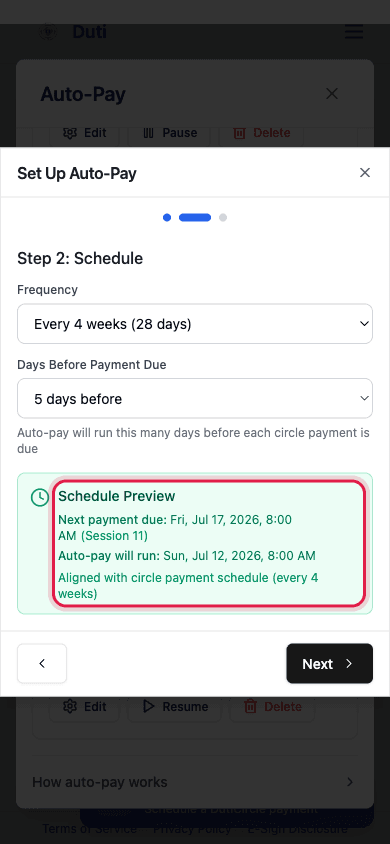
The Schedule Preview shows both dates — make sure the run lands before the due date.
Most failures are the bank connection or the balance check
If a run actually failed, two culprits cover almost every case. First, the bank connection: if your bank card shows a Reconnect label, fix that before anything else — a disconnected bank fails every run. Second, the balance check: Duti verifies your bank balance right before each run, and if the check can't confirm enough funds, the run is skipped and you're notified.
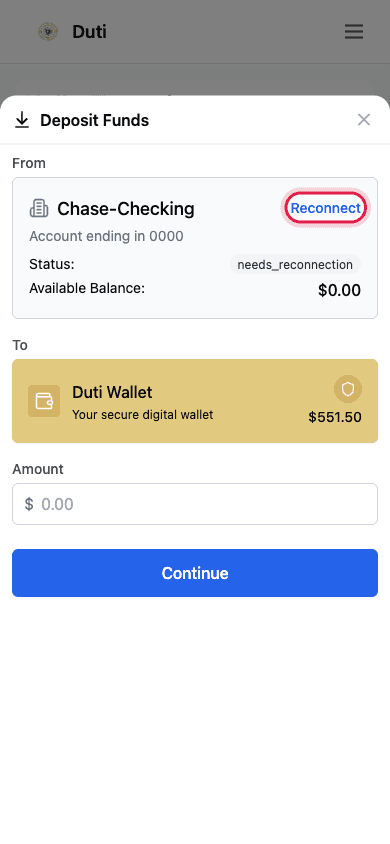
A Reconnect label on your bank means runs will fail until you re-link it.
- Bank shows Reconnect? Re-link it first — see the reconnect guide
- Run skipped by the balance check? Top up your account, or pay manually for that session
- After a skipped run, the next cycle runs normally on its own
Good to Know
A skipped run doesn't cancel Auto-Pay
One failed cycle never disables your schedule. Just confirm the card still says Active — the next run happens as scheduled.
Adding a slot changes the charge
If you add an extra slot in a circle, your existing auto-pay will start covering BOTH slots on its next run. Review the Amount on your card after any membership change.
Manual catch-up after a miss
Auto-pay only covers upcoming sessions. If one was missed, pay that session manually via Send Money — see the catch-up guide.
Balance check isn't your fault
Occasionally the automatic balance check can't reach your bank in time even when the funds are there. The run is skipped for safety — paying manually that session is the fastest fix.
Common Questions
Check the Next Deposit date on the card — the run may simply be scheduled after today. Also check Recent Transactions in your wallet for a pending deposit that's already on its way.
The pre-run balance check sometimes can't verify your balance in time, even when the funds are there. Pay manually for this session; if it keeps repeating, contact support.
You don't set it directly — the amount is auto-calculated from your circle. It changes only when your circle's dues change or your slot count changes.
Yes — tap Pause on the card before a trip or a tight month, then tap Resume when you're ready. Nothing runs while it's paused.
No — it only covers upcoming sessions. If you missed one, catch up manually with a Send Money payment for that session.